Physical Connection & Specifications
Everything needed to mount, power, and wire the SmartphoneKey reader — from unboxing to getting the reader online.
In the box
Confirm every item is present before you start.
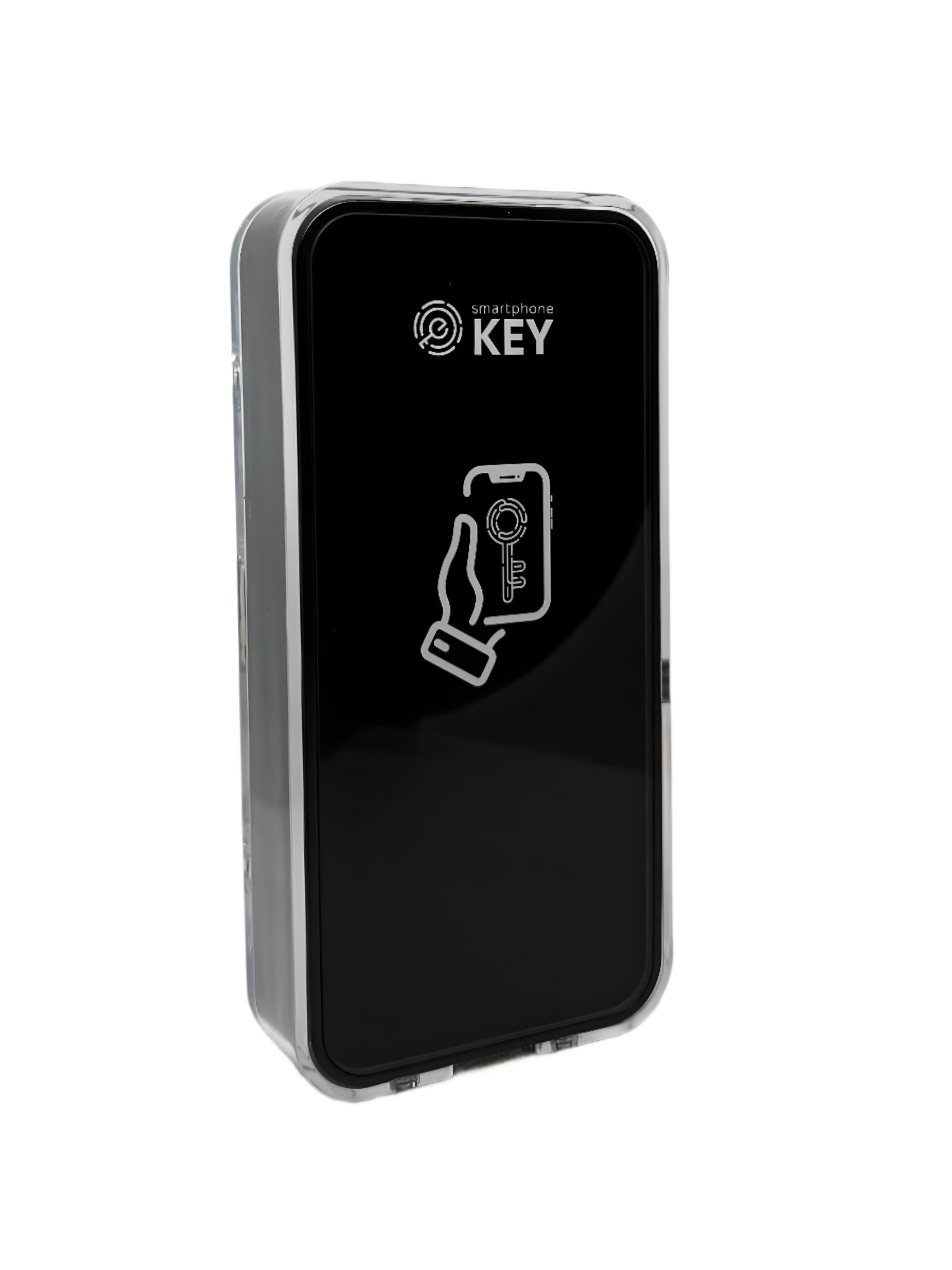
Reader with backplate
Smart access-control reader pre-installed in a robust mounting enclosure for seamless wall integration.
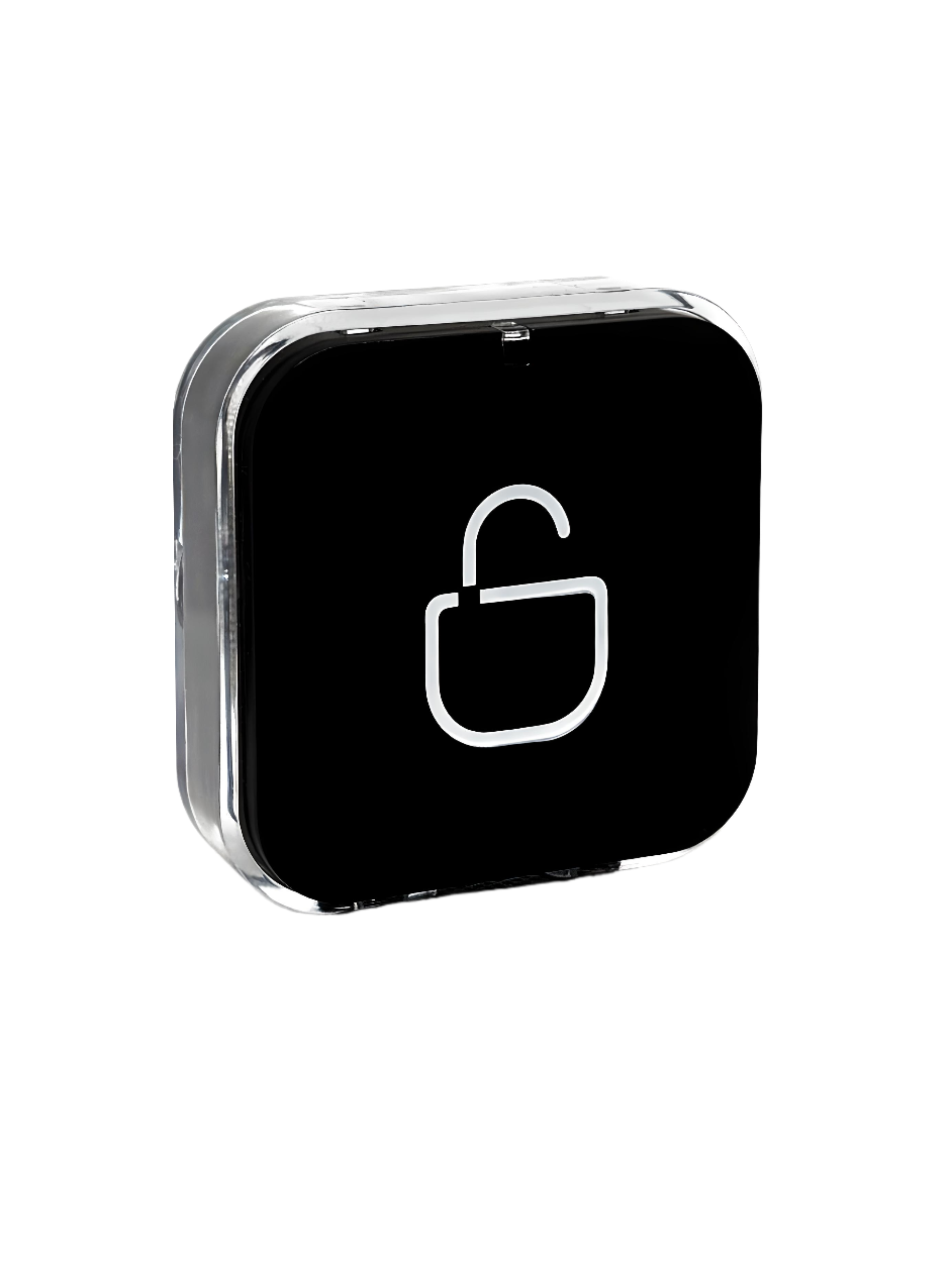
Exit button with backplate
Push-to-exit button in a durable mounting enclosure for easy installation.
Wall-mount installation kit
All necessary screws, anchors, and hardware for secure wall mounting.
Hidden-bolt screwdriver
Precision screwdriver designed specifically for adjusting and securing the hidden bolt.
Two QR codes
Self-adhesive QR codes for flexible placement — they act as a digital intercom, pre-linked to the reader.
Specifications
Dimensions, power, and environmental limits.
Mount the hardware
Fix the reader and exit button to the wall.
- Drill four holes on the wall or door for the self-tapping screws, plus one hole for the cable.
- Put the rubber bungs into the four holes.
- Fix the bracket firmly on the wall with four self-tapping screws.
- Fix the bracket and reader together with the fixing-bracket screw.
- Thread the cable through the cable hole.
- Drill two holes on the wall or door for the self-tapping screws, plus one hole for the cable.
- Put the rubber bungs into the two holes.
- Fix the bracket firmly on the wall with two self-tapping screws.
- Fix the bracket and exit button together with the fixing-bracket screw.
- Thread the cable through the cable hole.
Install the SIM card
LTE revision onlyOpen the back cover and seat the SIM.
Open & seat the SIM
6 screws on the back- Unscrew the six screws on the back of the device.
- Insert the SIM card into the holder.
- Close the back cover.
- Tighten the six screws.
Wire — reader relay
Direct wiring using the reader's built-in relay.
The reader's own relay switches the lock. The exit button can be wired in parallel on the power line if needed.
Red and black power the reader; the yellow and white data wires run to the exit button, which can be connected in parallel if needed.
Keeps the maglock energized and locked. When access is granted the relay opens the NC circuit, cutting power and unlocking the door.
Keeps the strike unpowered and locked. When access is granted the relay closes the NO contact, delivering power to unlock the strike.
Connect to the network
Get the reader online over LTE, Wi-Fi, or Matter over Thread.
The reader comes in two hardware revisions — LTE and Wi-Fi — so pick the tab that matches yours. Matter over Thread works on both.
Insert the SIM and you're online
Nothing to configure — just check it's Online- Insert the SIM card as shown in Step 4.
- Power the reader on. It joins the mobile network by itself.
- Open the Admin Panel → Devices and check that the reader's card shows Online.
Pair over Bluetooth, then share your Wi-Fi
Stay next to the reader- In the Admin Panel, open Devices, find your reader and choose ⋮ → Configure Wi-Fi.
- Click Pair Lock and pick your reader from the Bluetooth list — it shows up as SK#….
- Type your network name (SSID) and password, then click Connect Lock to Wi-Fi.
- Wait for “Wi-Fi configured”. That's it — the reader is online.
- LTE revision Power off, open the back cover and take out the SIM card. Close the cover and power on again.
- Hold the Reset button for 5 seconds — until the blue key icon on the front panel goes dark.
- The reader is now in pairing mode. Leave it there until the Admin Panel says it's connected.
- Click Add Lock. Enter the Serial Number and Matter Code (or scan them), then click Add.
- When the reader's card appears, choose ⋮ → Connect to Matter Hub.
- Pick the hub, confirm the reader is still in pairing mode and click Next.
- Wait for “Lock connected to hub” — this can take up to 3 minutes.
- On the reader's card choose ⋮ → Connect to Matter Hub. It doesn't matter how the reader was connected before.
- Pick the hub, confirm the reader is still in pairing mode and click Next.
- Wait for “Lock connected to hub” — up to 3 minutes. The card now carries a Matter tag.